
Screenshots and screen recordings, done in a keystroke.
ENShot lives in your menu bar. Press ⌥Z, drag, mark it up and drop it where it needs to go — or record the screen as MP4 or GIF. Everything stays on your Mac.
macOS 14 Sonoma or later · Apple silicon & Intel
- 10 annotation tools
- Scrolling capture up to 60,000 px
- MP4 · GIF · HEVC
- On-device OCR
- 4 app languages
One menu-bar app for every capture
From a quick crop to a narrated walkthrough, ENShot covers the whole job without switching apps.
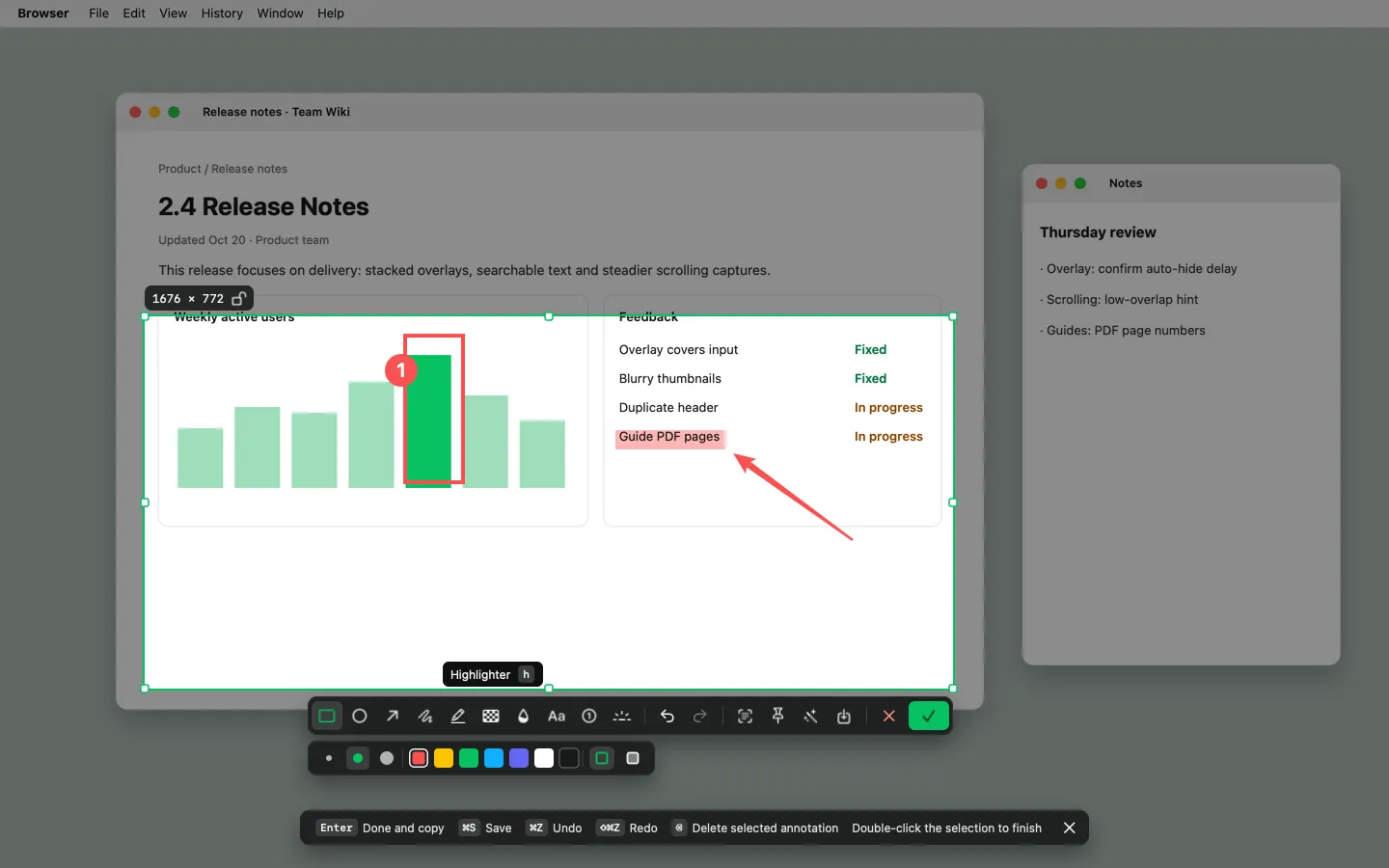
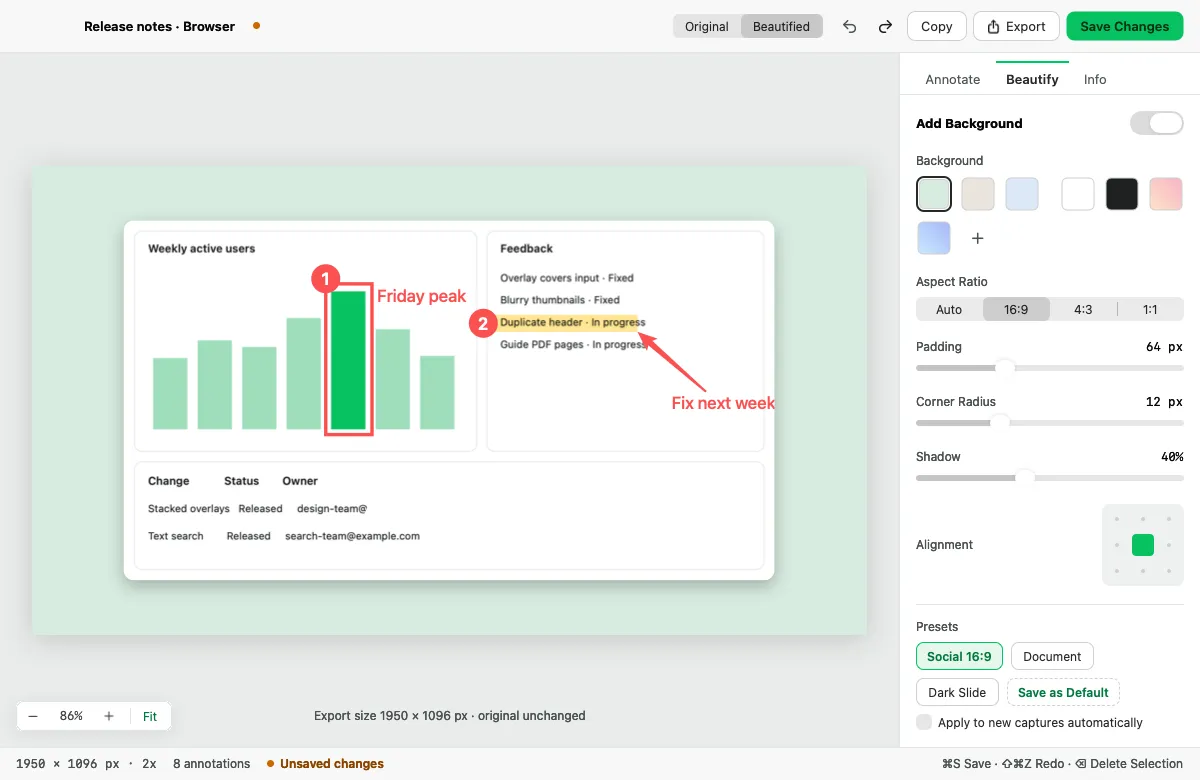
Screenshot & annotate
Area, window and full-screen capture with 10 annotation tools, an editor and one-click beautify.
Learn more →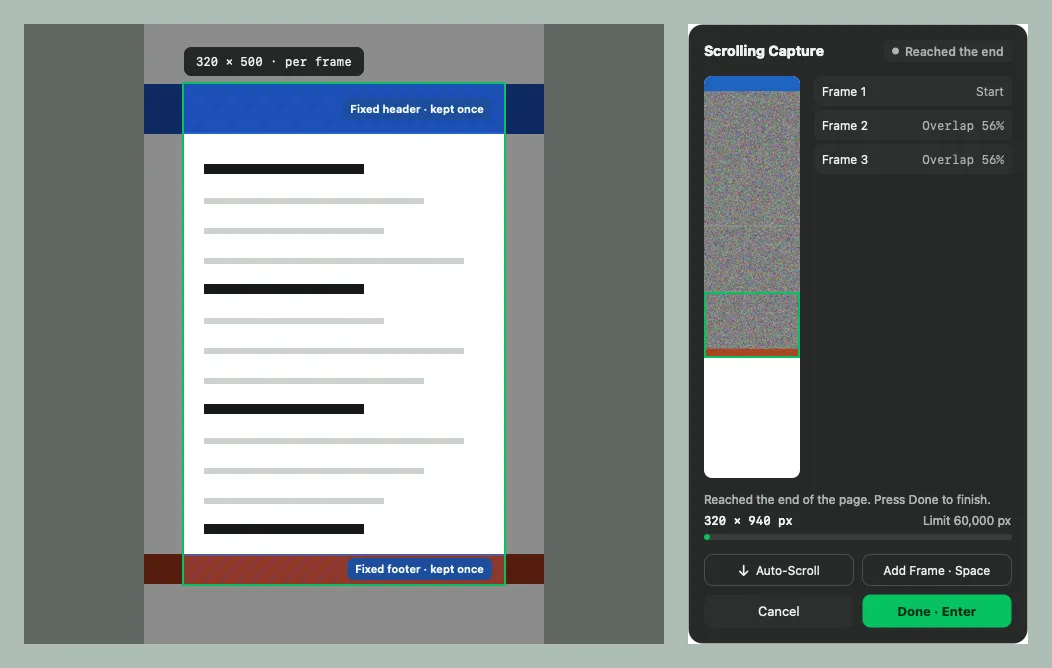
Scrolling capture
Stitch long pages, chats and documents into one tall image — scroll yourself or let ENShot scroll.
Learn more →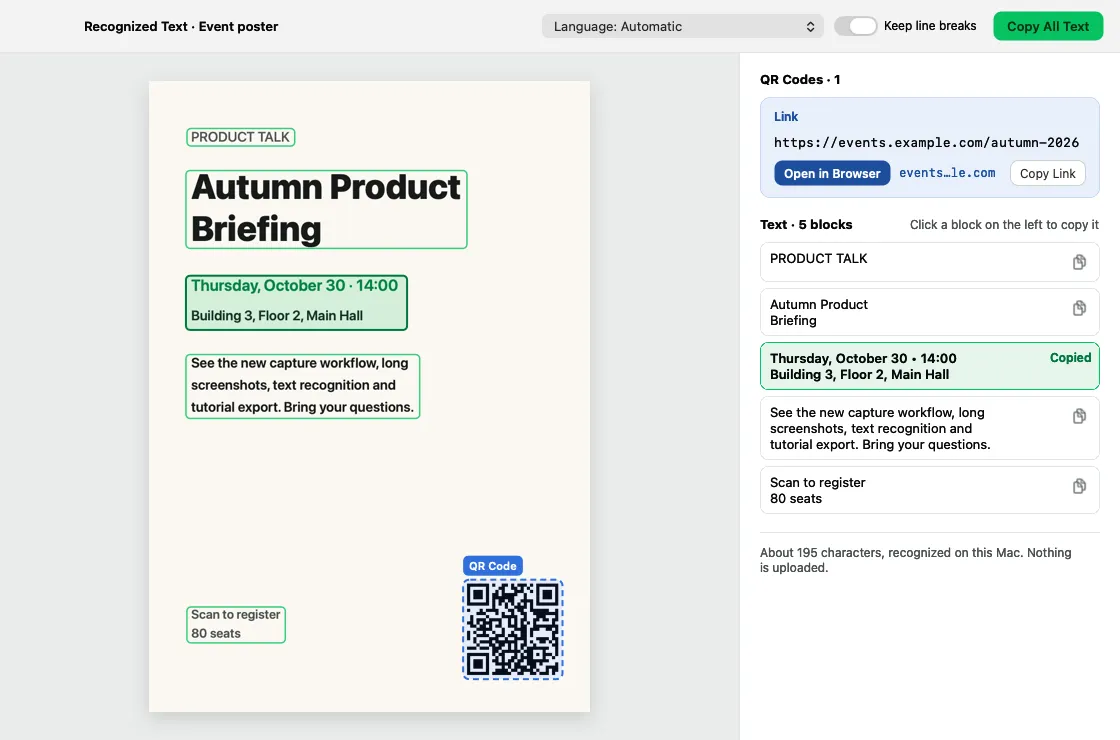
OCR & QR codes
Recognize text and QR codes on-device, copy any block, and search history by the words inside images.
Learn more →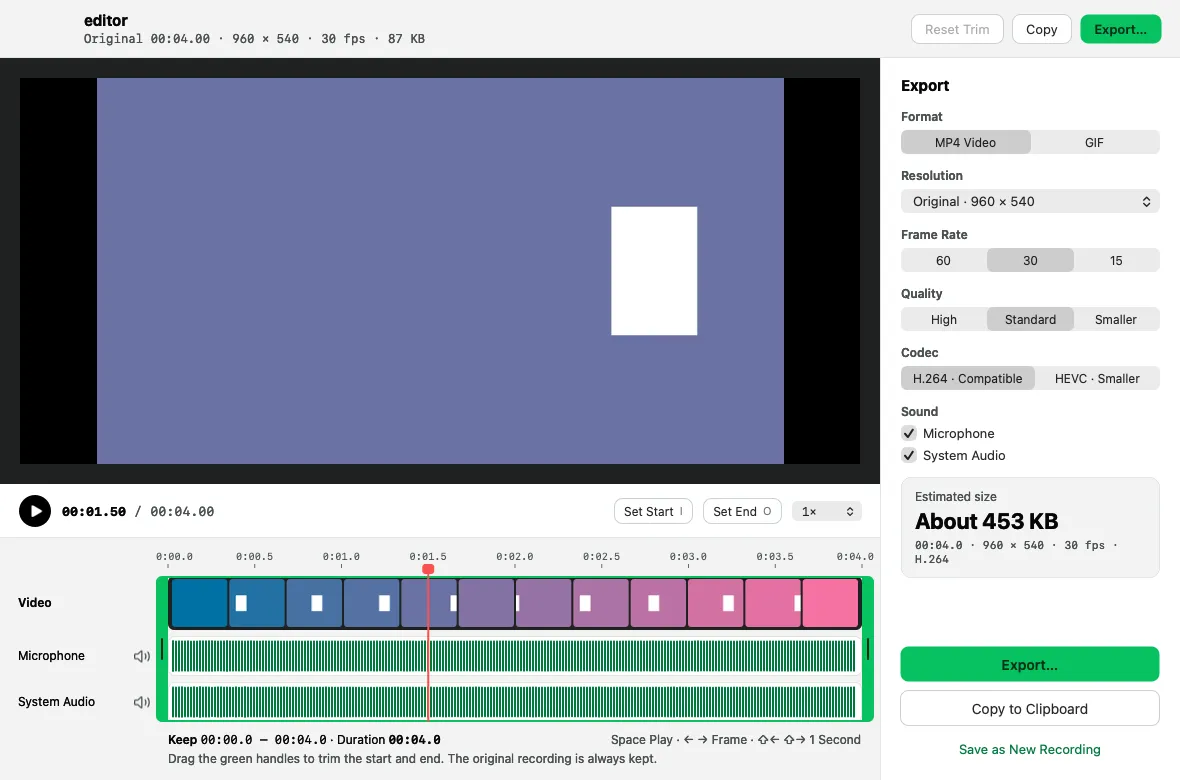
Screen recording & GIF
Record MP4 or GIF with microphone, system audio, camera, clicks and keystrokes, then trim and export.
Learn more →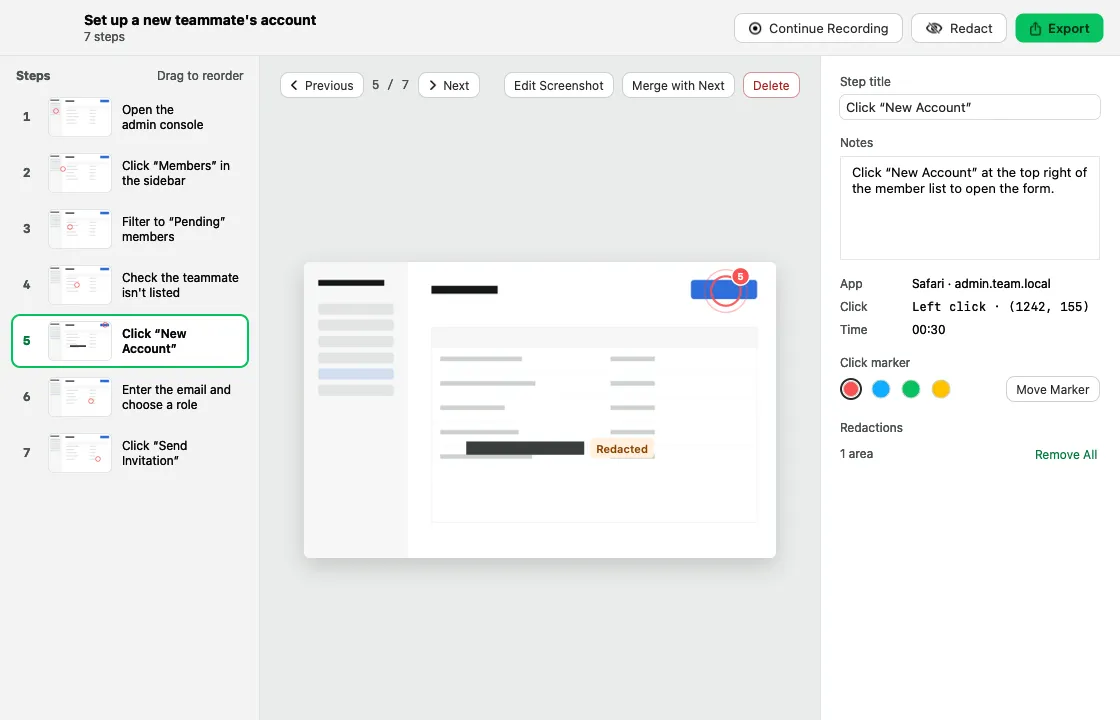
Step-by-step guides
Click through a task and get a numbered guide with screenshots, ready to export as HTML, Markdown or PDF.
Learn more →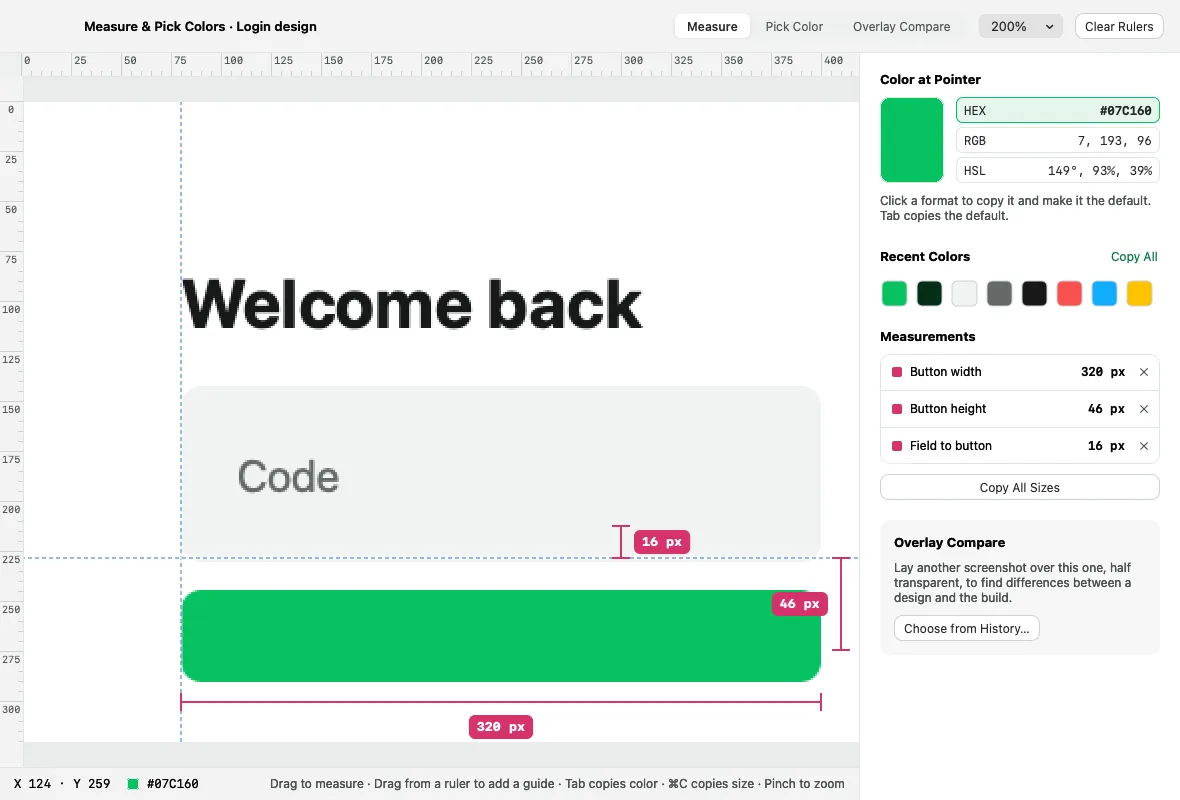
Pins & pixel inspector
Float captures above your windows, and measure, pick colors and compare designs in physical pixels.
Learn more →Capture, annotate, deliver
Capture
Area, window (with its rounded corners and shadow), full screen, scrolling, text or color. Hover to snap to windows; arrow keys nudge pixel by pixel.
Annotate
Rectangle, ellipse, arrow, pen, highlighter, mosaic, blur, text, step numbers and spotlight — right on the selection, with undo and redo.
Deliver
Copy, save, pin, or drag the card from the quick overlay straight into Finder, a chat or a document.
Record the screen as MP4 or GIF
Pick an area, a window or the whole display, then press ⌃⌥M. Microphone and system audio go on separate tracks, and clicks, keystrokes and your camera can appear in the video.
- H.264 or HEVC at 30 or 60 fps, three quality levels
- GIF recordings up to 30 seconds
- Countdown, pause, restart and discard from the control pill
- Trim, mute tracks and export from the video editor
- Unfinished recordings are recovered after a crash

Your screen never leaves your Mac
ENShot has no account, no cloud and no analytics. Captures, recordings, guides and recognized text are stored in your Library folder. The only network requests ENShot makes are for updates, and you control those in Settings.
No account
Download, open and capture. Nothing to sign up for.
No telemetry
No analytics, crash reporting or usage tracking SDKs.
On-device OCR
Text and QR codes are recognized with Apple's Vision framework, on your Mac.
Your files
Everything lives in ~/Library/Application Support/ENShot. Delete it any time.
Global shortcuts
Every shortcut can be re-recorded in Settings › Capture & Shortcuts. ENShot tells you when another app already uses one.
- Capture area⌥Z
- Capture window⌥⇧Z
- Capture full screen⌥⌘Z
- Scrolling capture⌃⌥S
- Recognize text⌃⌥T
- Record screen⌃⌥M
- Record a step-by-step guide⌃⌥R
- Pick color⌃⌥C
- Pin clipboard image⌃⌥V
The app speaks English, Simplified Chinese, Traditional Chinese and Japanese.
Frequently asked questions
Is ENShot really free?
Yes. ENShot is free to download and use, with no trial period, no subscription, no watermark and no account.
Which Macs does ENShot run on?
Any Mac with macOS 14 Sonoma or later. The app is a Universal binary that runs natively on Apple silicon and Intel Macs.
Does ENShot upload my screenshots?
No. Captures, recordings and recognized text stay on your Mac. ENShot has no cloud service; it only connects to the internet to check for and download updates.
Can ENShot record the screen with sound?
Yes. ENShot records MP4 video (H.264 or HEVC) with microphone and system audio on separate tracks, or GIF clips up to 30 seconds.
Can it take scrolling screenshots?
Yes. Select the scrolling area and ENShot stitches frames as you scroll — or scrolls for you — up to 60,000 px tall, keeping fixed headers and footers once.
Does ENShot recognize text in images?
Yes. Text and QR codes are recognized on-device with Apple's Vision framework. Click a text block to copy it, and search your history by the text inside screenshots.
What permissions does ENShot need?
Screen Recording to capture the screen. Optional: Accessibility for automatic scrolling and step names, Microphone and Camera for recordings, and Input Monitoring to show keystrokes. The first-run guide explains each one.
Which languages does the app support?
English, Simplified Chinese, Traditional Chinese and Japanese. It follows your system language, and you can switch in Settings › General.
Make your next screenshot a good one.
Free, signed and notarized for macOS 14 Sonoma and later.
Download for Mac