 ENShot
Keep references in view, measure to the pixel
Pin any capture or clipboard image above your windows while you work, then open the pixel inspector to measure, pick colors and compare against a design.
macOS 14 Sonoma or later · Apple silicon & Intel
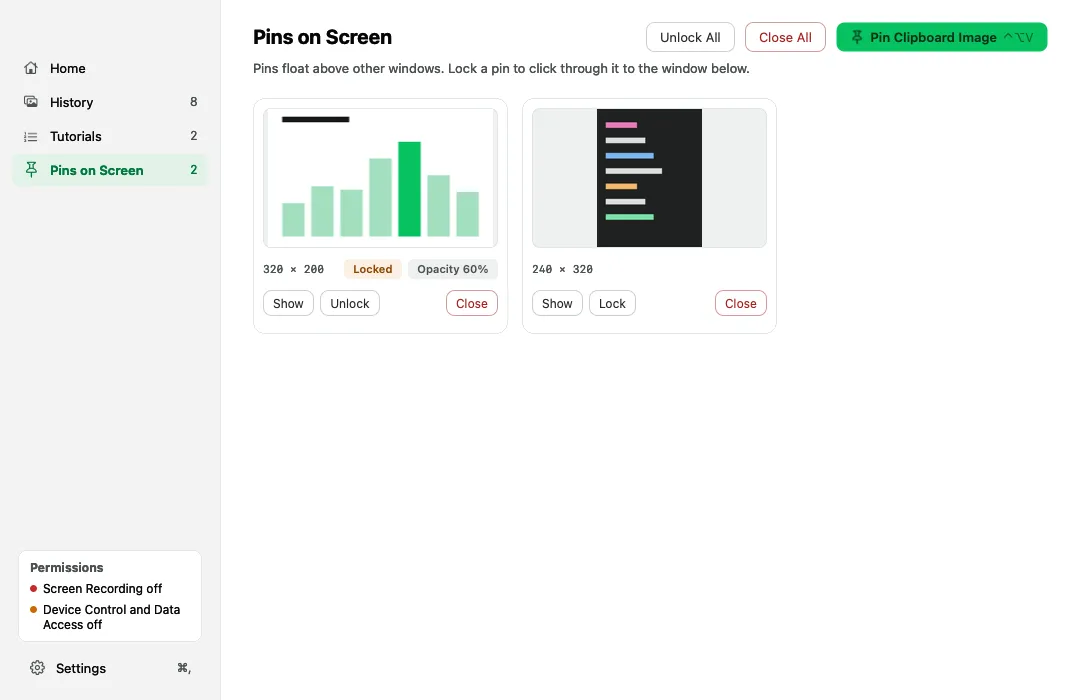
Pins
Zoom 25–400% with the scroll wheel or trackpad and set opacity from 20 to 100%.
Click-through
Lock a pin with ⌘L so clicks pass to the window below.
Pin the clipboard
Press ⌃⌥V to pin whatever image is on the clipboard.
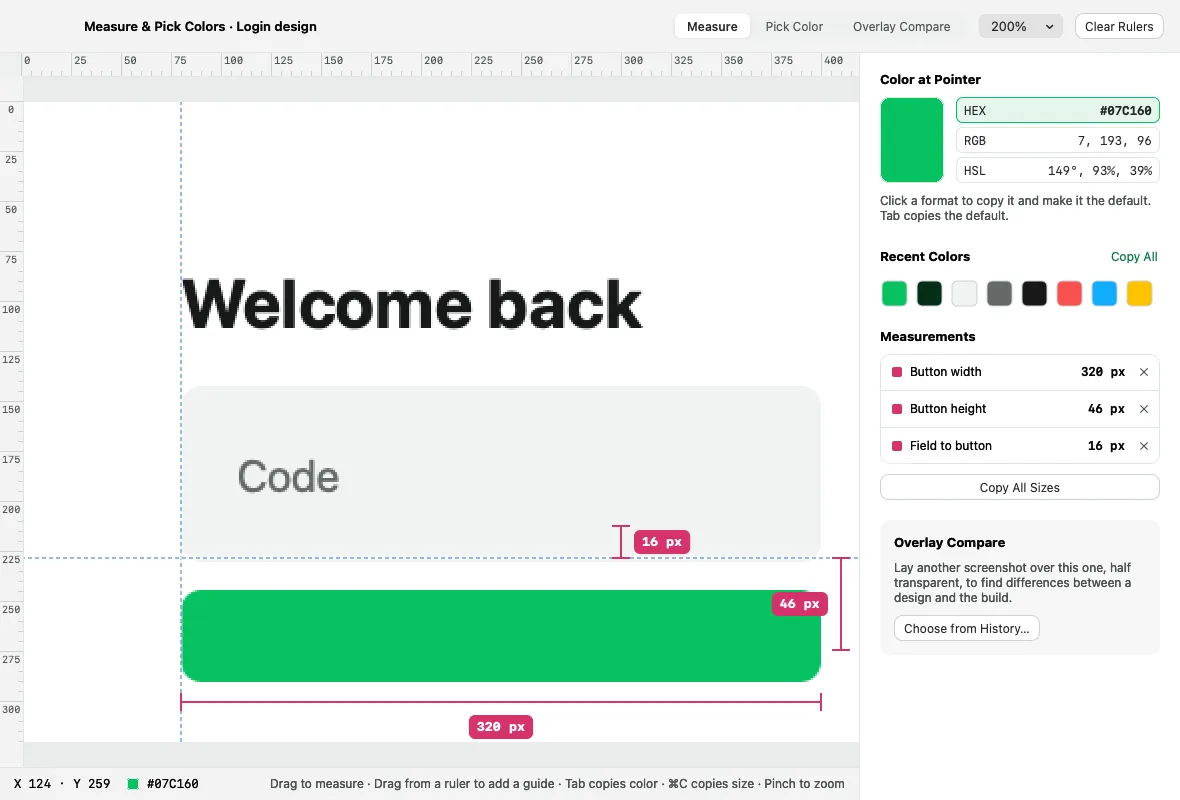
Measure
Rulers, snapping guides and a list of measurements, in the image's physical pixels.
Pick colors
HEX, RGB and HSL with recent colors. Press ⌃⌥C to pick a color anywhere on screen.
Overlay compare
Lay one screenshot over another with opacity or difference blending to spot changes.
Keep references in view, measure to the pixel
- Capture, then choose Pin in the toolbar or quick overlay.
- Scroll to zoom, ⌘L to lock, Esc to close.
- Open a capture in the pixel inspector to measure or pick colors.
Frequently asked questions
Can I click through a pinned screenshot?
Yes. Lock the pin with ⌘L and clicks pass through to the window underneath.
Are measurements in points or pixels?
Physical pixels of the original capture, so Retina screenshots measure at their real resolution.
More features
Screenshot & annotate
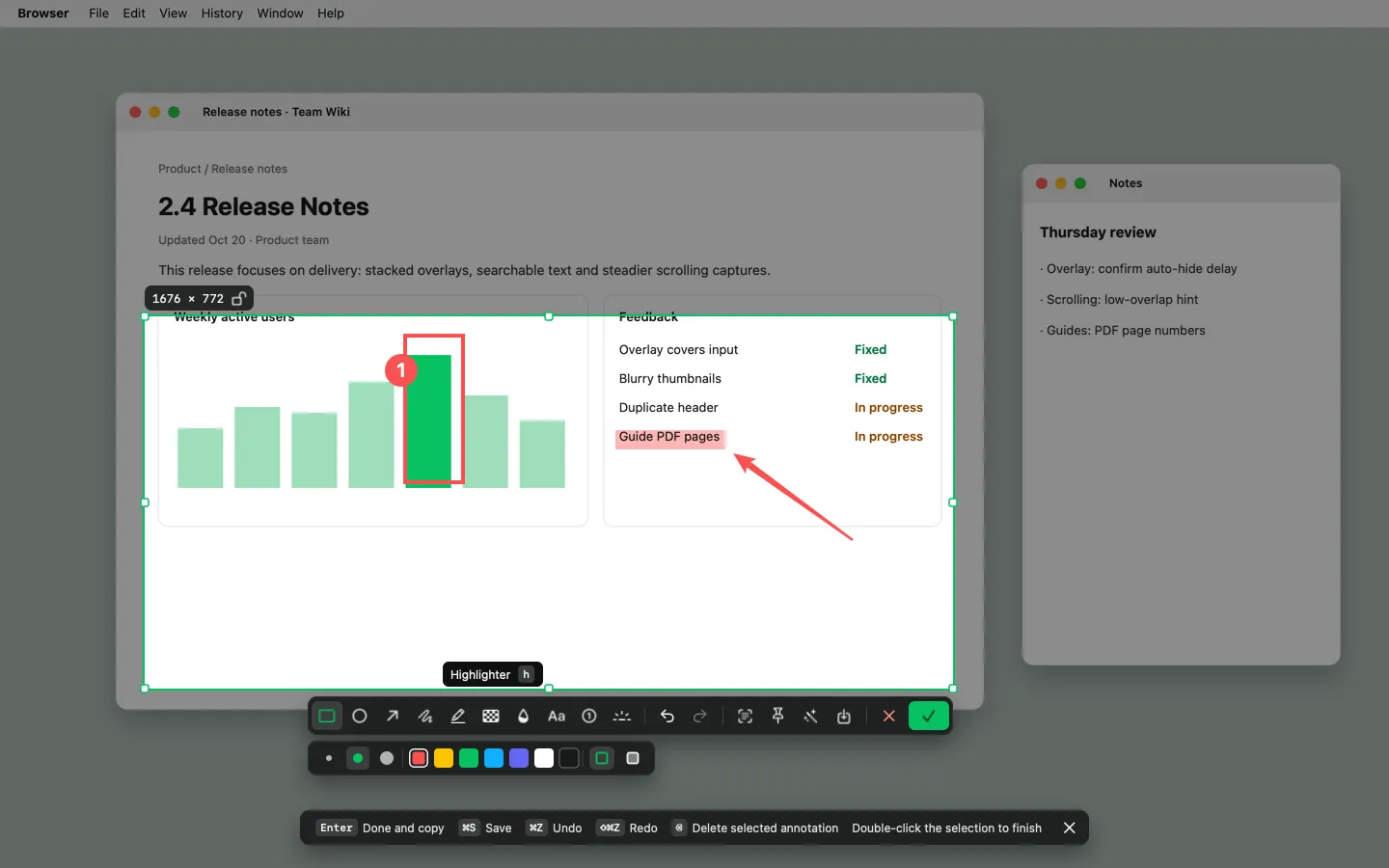
Area, window and full-screen capture with 10 annotation tools, an editor and one-click beautify.
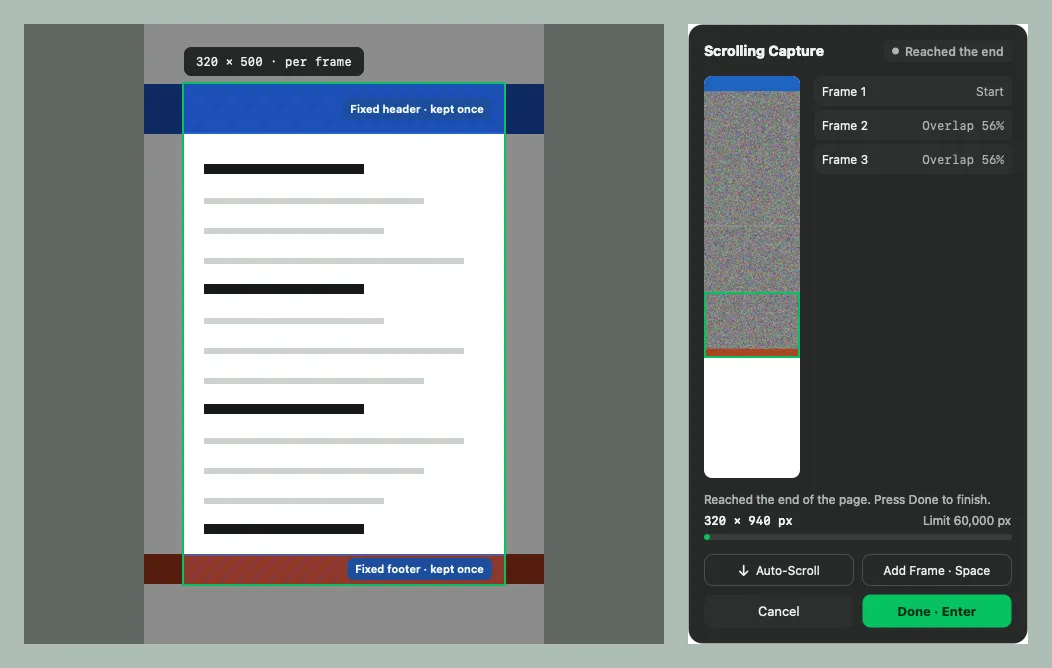
Scrolling capture
Stitch long pages, chats and documents into one tall image — scroll yourself or let ENShot scroll.
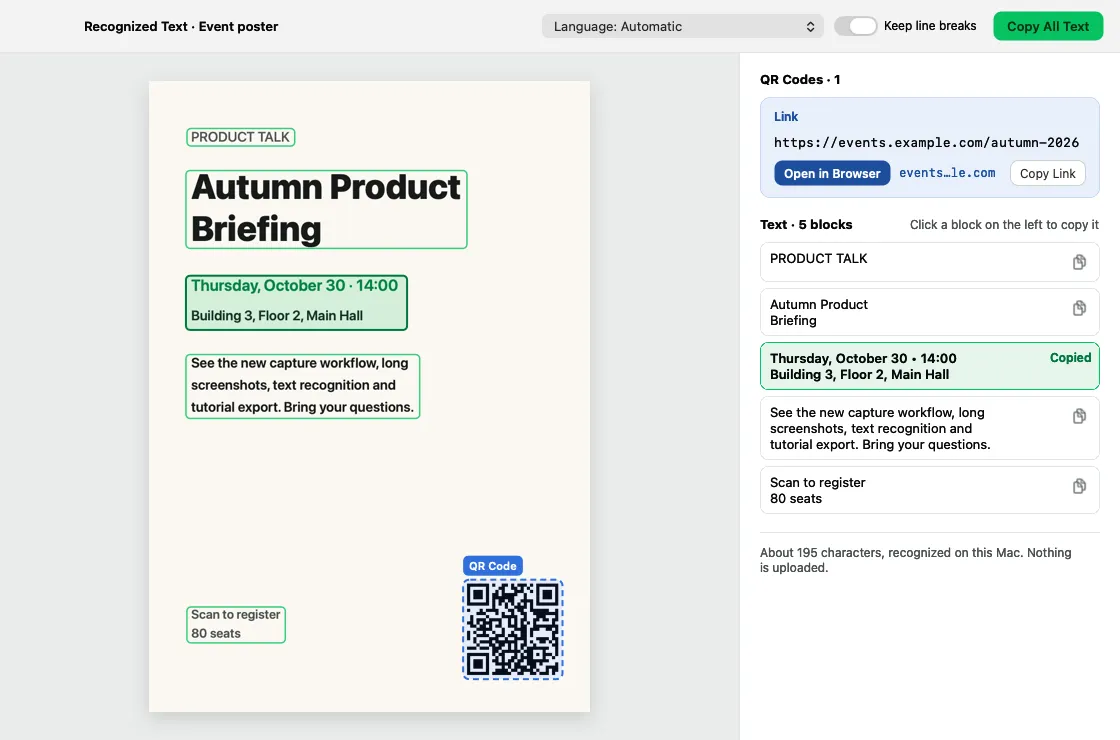
OCR & QR codes
Recognize text and QR codes on-device, copy any block, and search history by the words inside images.